 Skip to content
WO Mic iPhone V 1.4 Download | Free WO Mic iOS App
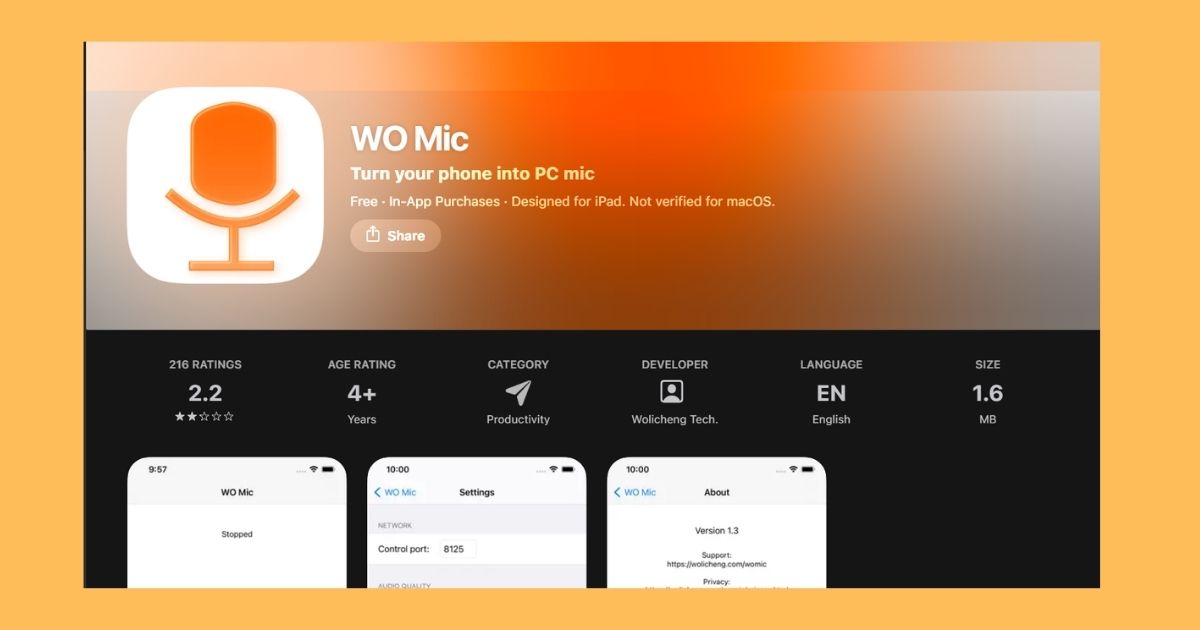
Wo Mic iOS transforms voice data from an iPhone or iPad into a free wireless mic for PC or Mac using Wi-Fi. It is advantageous for professionals, enabling them to utilize it in meetings, recordings, or gaming. This microphone for iPhone connects only through WiFi and operates in default microphone mode. The software is easy to install, lightweight, and works seamlessly with apps like Zoom, Discord, etc.
Enjoy advanced and improved features, such as ad removal, enhanced audio quality, and adjustable volume levels, with a subscription purchase. The subscription can be billed using your iTunes account upon purchase. It will be renewed automatically until you disable auto-renewal 24 hours before the current subscription from the settings of your iTunes account.
What is WO Mic for iPhone?
WO Mic lets you use your iPhone or iPad as a wireless microphone for your Windows PC or Mac. It captures audio through your device’s built-in microphone and transmits it over the same Wi-Fi network. Once connected, your computer recognizes it as a virtual microphone, allowing you to use it with recording, streaming, gaming, and video conferencing applications without buying extra hardware.
INFORMATION
| Detail | Information |
|---|---|
| App Name | WO Mic iPhone |
| Latest version | V1.4 |
| Source | Softonic |
| Category | Productivity |
| Compatibility | iOS 13.0 or above |
| In-app purchases | Yes |
| Size | 1.6 MB |
What are the Common Uses of WO Mic
WO Mic is useful for many everyday tasks, including:
- Online meetings on Zoom, Microsoft Teams, and Google Meet
- Voice chat on Discord and Skype
- Live streaming with OBS Studio and Streamlabs
- Podcast and voice-over recording
- Online gaming with voice communication
- Virtual classes and presentations
How Many Components Are Required To Run the Wo Mic iPhone?
WO MIC Client
The software operates on a computer, connects with an app, receives voice data, and sends it to the virtual microphone device.
WO Mic Virtual Device
It runs on PCs that receive voice data from a client program. The virtual device emulates a physical microphone. and provides data to applications like a Sound Recorder.
How To Use Wo Mic For IOS | Download & Installation Steps
Here is a complete guide for downloading the microphone app on iOS devices:
Wo Mic For iPhone
1. Install the App
- Download the Wo Mic App from the Apple App Store. Android users can download the WO Mic APK instead.
2. Install the VC runtime on PC
- From the Microsoft Official site, install the microphone installer (VC RunTime Re-distribuatble (*86)). After installing, check that it is working.
- Check that VC Runtime (*86) is installed.
3. Install the Wo Mic Driver and Client
- Download the Driver and client and set up the program.

| File | Size | Version |
|---|---|---|
| Wo Mic Installer | 1,705,335 bytes | Client version: 6.3 Driver Version: 2.1.0.0 |
How To Start The Wo Mic On An IOS Device?
Here is a step-by-step guide to quickly start the mic on iPhone by using Wi-Fi transport. Ensure that your iPhone and PC are connected to the same WiFi network.
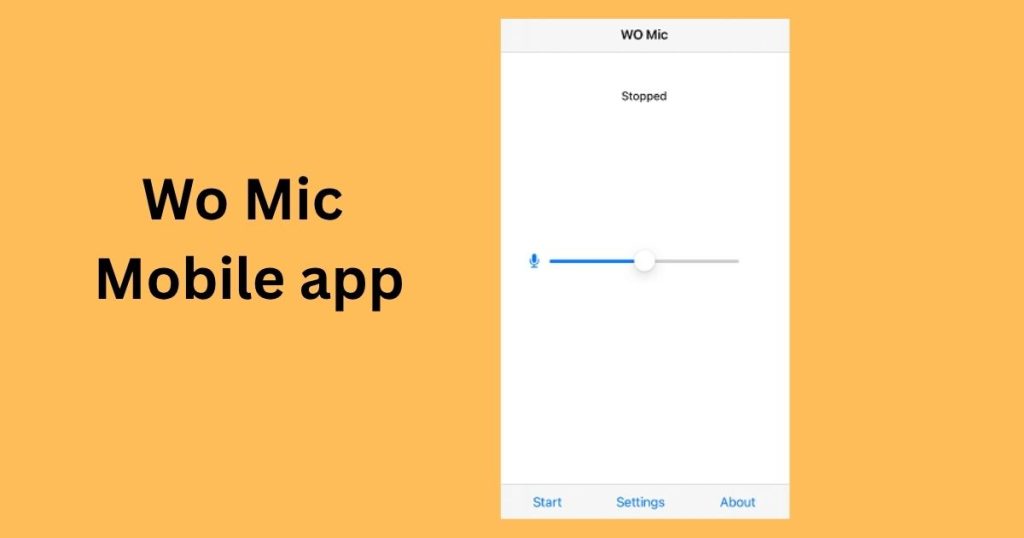
1. Start Server
- Launch the app on iPhone and tap the “Start” button.
- Allow necessary permissions if required.
- Now, it's ready to accept connections from clients.
2. Connect From Client On PC
- Click on the Windows Key and type “Wo Mic” in the search bar.
- Now, launch the Wo Mic Client.
- Choose a connection and connect it.
- After that, choose WiFi as a transport and enter your iPhone’s IP address.
- Click the connect

3. Use Wo Mic Device
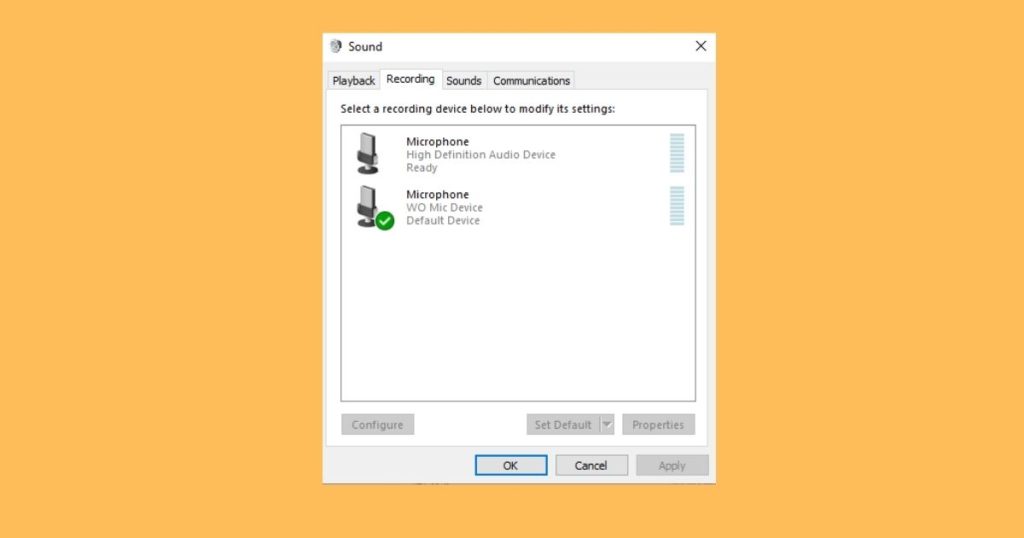
- Choose the Wo Mic Device as audio input.
- Keep in mind, some apps don’t let you choose a microphone. In that case, set WO Mic as your default recording device in your Windows sound settings.
What are the System Requirements
Before setting up WO Mic, make sure:
- Your iPhone or iPad has the WO Mic app installed.
- Your computer has the WO Mic Client and Virtual Device installed.
- Both devices are connected to the same Wi-Fi network.
- Microphone and Local Network permissions are enabled on your iPhone.
WO Mic For iPhone Easy Setup and Fixes
WO Mic is a free app that turns your iPhone into a microphone for your computer. You can use it for talking, recording, gaming, or online meetings. It connects through Wi-Fi, so no cables are needed.
Connection Options for iPhone
WO Mic works only with Wi-Fi on iPhone. It does not support USB, Bluetooth, or Wi-Fi Direct.
| Connection Type | Works on iPhone |
|---|---|
| USB | Not supported |
| Bluetooth | Not supported |
| Wi-Fi | Supported |
| Wi-Fi Direct | Not supported |
How to Connect WO Mic on iPhone
- Download the WO Mic app from the App Store.
- Install the WO Mic Client on your computer.
- Open the app on your iPhone and choose Wi-Fi as the connection type.
- You will see an IP address on your phone screen.
- Open the WO Mic Client on your computer and type that same IP address.
- Click Connect. Your iPhone will now work as a microphone.
How to Mute or Unmute
You can mute or unmute the mic only from your iPhone. Tap the mute or unmute button near the volume bar inside the app.
How to Adjust the Volume
To make your voice louder or softer, move the volume slider on your iPhone screen. Slide left for lower volume or right for higher volume.
If the App Stops Working
If the WO Mic not working or does not connect, try these steps:
- Make sure your iPhone and computer are connected to the same Wi-Fi network.
- Turn off VPN or firewall apps that might block the connection.
- Restart both your iPhone app and the WO Mic Client on your computer.
- If it still doesn’t work, change the control port number in the app settings (for example, from 8125 to 40000) on both devices.
Check If WO Mic Driver Is Working
After installing the WO Mic Client on your computer, it automatically adds a virtual microphone.
To check:
- On Windows, press Windows + X and open Device Manager.
- Click Sound, Video and Game Controllers.
- You should see WO Mic Device listed there. If not, reinstall the client.
When Antivirus or Firewall Blocks WO Mic
Sometimes antivirus or firewall software can stop WO Mic from working. If it was working before but suddenly stopped:
- Add WO Mic Client to your antivirus allow list.
- Reinstall the WO Mic Client in a new folder.
- Change the control port number and try again.
WO Mic works only with Wi-Fi on iPhone. It does not support USB, Bluetooth, or Wi-Fi Direct.
WO Mic vs External USB Microphone
| Feature | WO Mic | USB Microphone |
|---|---|---|
| Cost | Free | Paid |
| Wireless Connection | Yes | No |
| Easy to Carry | Yes | Limited |
| Additional Hardware | Not Required | Required |
| Audio Quality | Good | Excellent |
| Best For | Meetings, Gaming, Streaming | Professional Recording |
Compatible Applications
After connecting, WO Mic works with most applications that support microphone input, including Zoom, Discord, Microsoft Teams, Google Meet, OBS Studio, Streamlabs, Skype, Audacity, and Adobe Audition.
What are the best tips for Better iPhone Wo Mic Audio Quality?
For the best recording experience:
- Keep your iPhone close to your voice.
- Use a stable Wi-Fi connection.
- Record in a quiet environment.
- Close unnecessary apps that may affect network performance.
- Test the microphone before meetings or live streams.
What Are The Features Of The Wo Mic Pro IOS?
- Turns your iPhone into a wireless microphone for Windows and macOS
- Connects through a local Wi-Fi network
- Uses the built-in iPhone microphone
- Adjustable microphone volume
- One-tap mute and unmute
- Compatible with Zoom, Discord, OBS Studio, Microsoft Teams, Google Meet, Skype, and other microphone-supported apps
- Supports up to 48 kHz audio sampling
- Automatic reconnection after temporary network interruptions
- Optional premium subscription removes ads and unlocks enhanced audio features
What is the Expected Wi-Fi Latency on iPhone?
WO Mic for iPhone works only over Wi-Fi, so a small audio delay is normal. Most users experience 50–200 ms of latency, depending on:
- Wi-Fi signal strength
- Router performance
- Network traffic
- Distance from the router
This delay is usually not noticeable during Zoom meetings, Discord calls, online classes, or voice chats. However, it may be noticeable when live streaming, monitoring your voice, or recording music, where low latency is important.
For better performance:
- Connect your iPhone and computer to the same Wi-Fi network.
- Use a 5 GHz Wi-Fi connection if available.
- Avoid heavy downloads or streaming while using WO Mic.
FAQs On Wo Mic iPhone
How do I activate mic mode on an iPhone using WO Mic?
On iPhone, WO Mic only supports the default built-in microphone. There are no extra mic modes like on Android. Just open the WO Mic app, and your iPhone’s main mic will automatically be used to send audio to your computer.
Why am I facing my iPhone's external microphone malfunctioning?
It may happen due to:
- Poor internet connection
- Damaged Connector
- Incorrectly fitted plugs
How can users check the microphone on iOS?
On Windows:
- Right-click the Sound icon on the taskbar.
- Select Sound settings and scroll to the Input section.
- Choose WO Mic as the input device.
- Speak into your iPhone — if the mic is working, the input level bar will move.
On - Open System Settings on your Mac.
- Click Sound, then go to the Input tab.
- Select WO Mic as the input device.
- Speak into your iPhone — you should see the input level bar respond.
Can I use WO Mic on my iPhone?
Yes, you can. WO Mic is an app that lets you use your iPhone as a microphone for your computer. You need to:
- Download the WO Mic app on your iPhone.
- Install the WO Mic client software on your Windows or Mac computer.
- Make sure both your phone and computer are on the same Wi-Fi.
- Open the WO Mic app on your iPhone and tap Start to begin using it.
What connection methods work on iPhone?
For iOS, WO Mic supports Wi-Fi connection only. USB, Bluetooth, and Wi-Fi Direct are not supported on iPhone.
Can I use WO Mic on my Mac or with other devices besides Windows?
The app listing mentions compatibility with Mac (macOS 11.0 or later) under certain conditions. But the primary setup and driver support are described for the Windows client. Be sure to check the version compatibility for your system.
Is WO Mic Safe to use on an iPhone?
Yes. WO Mic is safe when downloaded from the official App Store and used with its official desktop client. It only requires a microphone and local network permissions to transmit audio between your iPhone and computer.
Can I use the WO Mic with Bluetooth?
No. The iPhone version of WO Mic does not support Bluetooth connections. It works only over a Wi-Fi network, so your iPhone and computer must be connected to the same network for the app to transmit audio successfully.
Does WO Mic work for iPhone?
Yes. WO Mic works on iPhone and iPad, allowing you to use your device as a wireless microphone for a Windows PC or supported Mac. Simply install the WO Mic app on your iPhone, install the desktop client on your computer, and connect both devices over the same Wi-Fi network.
How much latency does WO Mic have on iPhone?
WO Mic for iPhone typically has 50–200 ms of Wi-Fi latency. The exact delay depends on your network quality and router. It is suitable for meetings, calls, and voice recording but may not be ideal for real-time audio monitoring or music production.
How much delay does WO Mic have on iPhone?
Because the iPhone version works only over Wi-Fi, most users experience 50–200 ms of audio latency. The exact delay depends on your Wi-Fi connection and router performance.
Does WO Mic work without Wi-Fi?
No. The iPhone version only supports Wi-Fi. USB, Bluetooth, and Wi-Fi Direct are not available on iOS.
Why can't my computer find my iPhone?
Check that:
- Both devices are connected to the same Wi-Fi network.
- The WO Mic server is running on your iPhone.
- The IP address entered in the WO Mic Client matches the address shown in the app.
- Firewall or antivirus software is not blocking the connection.
Does WO Mic work with all iPhone models?
WO Mic supports iPhones running iOS 13 or later. As long as your device meets this requirement and both devices share the same Wi-Fi network, it should work normally.
Can I use AirPods with WO Mic?
No. WO Mic uses your iPhone’s built-in microphone on iOS and does not support AirPods or other Bluetooth microphones as an audio source.
