
WO Mic Download : Free Client & Driver 6.3 for PC, Android & iPhone (2026)
WO Mic is a free software application that turns your Android phone or iPhone into a wireless microphone for your PC. It’s particularly useful for users who don’t own a dedicated microphone or want a quick and free solution for voice input, especially during gaming, meetings, podcast recording, streaming, voice chatting, or remote work.
WO Mic connects using Wi-Fi, USB, Bluetooth, or Wi-Fi Direct. It’s easy to set up, works with Windows and Mac, and supports popular apps like Zoom, Discord, and OBS Studio. It’s perfect if your computer doesn’t have a built-in mic or you just want better sound.
What Is WO Mic?
WO Mic turns your Android phone or iPhone into a free wireless microphone for your PC. WO Mic is a virtual microphone app developed by Wolicheng Tech. It lets your Android phone or iPhone act like a microphone for your Windows PC or laptop. If you’re looking for a complete mobile installation guide, see WO Mic APK download. Once you install the app on your phone and the client software on your computer, your phone works like a virtual microphone connected to your PC. It’s perfect for online meetings, gaming, voice chat, or streaming and works with Zoom, Discord, Skype, and OBS.
WO Mic 6.3 : Latest Version Information
| Category | Details |
|---|---|
| Software Name | WO Mic Client (Windows) |
| Version | 6.3 (Latest Official Client) |
| Windows Installer File Size | 1.63 MB (1,705,335 bytes) |
| Driver Version | 2.1.0.0 (Virtual Device) |
| Developer / Publisher | Wolicheng Tech (Beijing Wolicheng Technology) |
| License Type | Freeware (Free to Use) |
| Supported Operating Systems | Windows 7 / 8 / 10 / 11 |
| Supported Platforms | Windows PC (Client & Driver), Android, and iPhone (Mobile App) |
| Common Connection Methods | Wi-Fi / USB / Bluetooth |
| Installation Requirements | Microsoft Visual C++ Redistributable (x86) must be installed before running the setup. |
| Compatibility Notes | WO Mic Client 6.3 works with the latest WO Mic app for Android and iPhone. Both devices must use the same connection method and port settings. |
| Typical Use Case | Turn your Android phone or iPhone into a PC microphone for streaming, voice calls, gaming, online meetings, or voice recording. |
Video Guide for Downloading, Installing, and Connecting WO Mic App
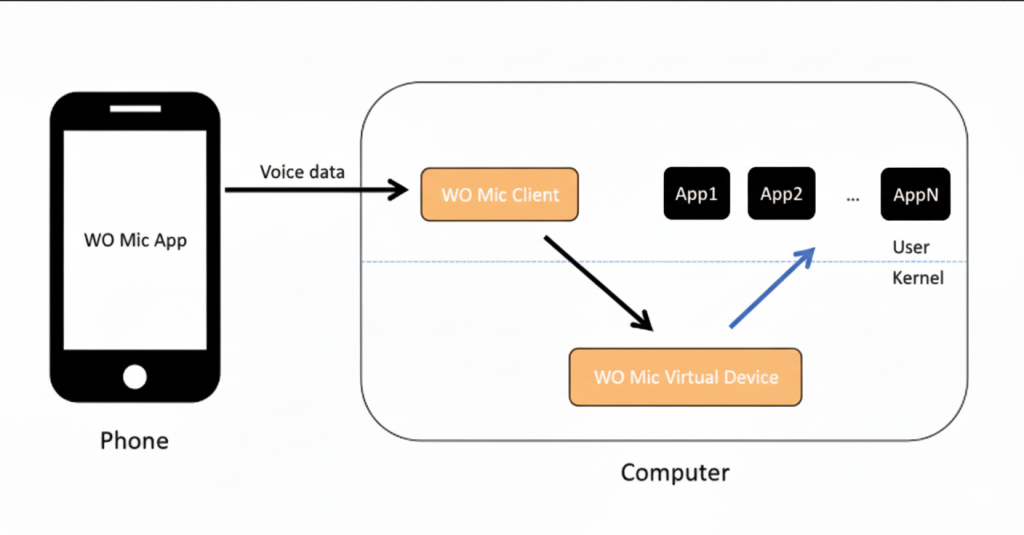
How Does WO Mic Work?
WO Mic App (on your phone)
- This app listens to your voice using your phone’s microphone.
- It then sends that voice data to your computer using Wi-Fi, USB, or Bluetooth
WO Mic Client (on your computer)
- This program receives the voice data from your phone.
- It then passes the audio to the WO Mic Virtual Device, which works as a virtual microphone.
WO Mic Virtual Device (on your computer)
- This creates a virtual microphone on your computer.
- It allows apps like Zoom, Skype, Discord, and OBS to detect your phone as a standard microphone.
You just speak into your phone, and your voice comes through the computer simple as that.
How Do I Download And Install WO Mic On PC & Windows 7, 8, 10, 11? (Step-by-Step Guide)
To use WO Mic, you need to install the app on your phone and the client software on your PC. The steps below are for Windows users. If you’re using Linux, check the Linux setup guide instead.
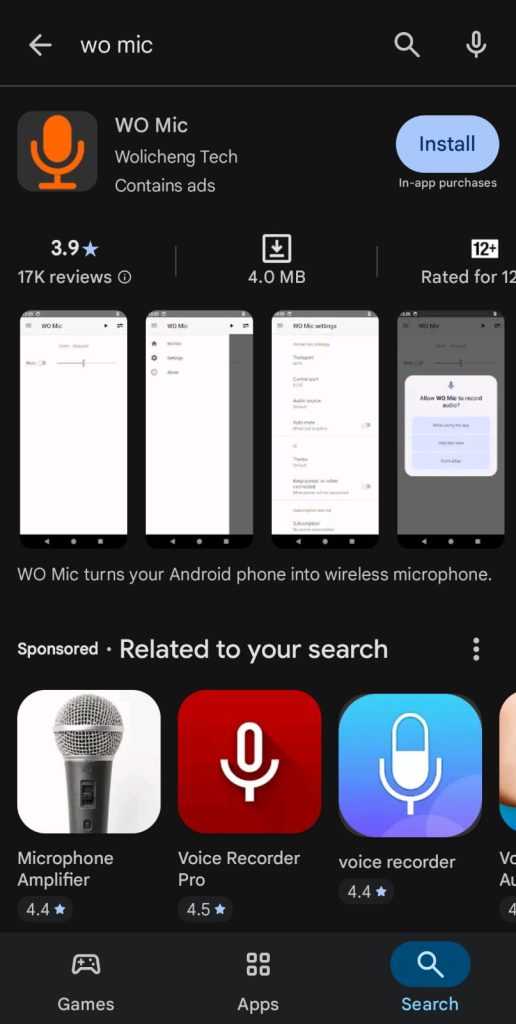
Step 1: Install WO Mic App on Your Phone
For Android Users:
- Open Google Play Store and search for WO Mic → Install it.
- If you can’t use the Play Store, download the Wo mic APK directly.
For iPhone Users:
- Open the App Store and search for WO Mic → Install it.
Step 2: Install Microsoft VC Runtime on Windows PC (Important for Windows Only)
- Install Microsoft Visual C++ Redistributable (x86). It’s needed to run WO Mic properly.
- If you don’t install this, you may get errors like "missing DLL files."
- Download it from the official Microsoft website.
- If it’s already installed, skip this step.

Step 3: Install WO Mic Client and Driver on Your Computer
- Download the WO Mic Installer for Windows below it includes:
- WO Mic Client (desktop control app)
- WO Mic Driver (virtual microphone)
- Run the installer and follow the instructions to complete installation.
Step 4: Choose a Connection Method
You can connect your phone to your computer using one of these methods:
- Wi-Fi Make sure both devices are on the same Wi-Fi network.
- USB Use your phone's charging cable.
- Bluetooth Pair your phone and PC.
- Wi-Fi Direct Turn on hotspot on your phone and connect your PC to it (no router needed).
On Android, USB may require USB Debugging enabled in Developer Options.
On iPhone, USB connection may only work via iTunes and has some limitations.
How To Start WO Mic Connection Using Wi-Fi
Before you begin, make sure that both your phone and computer are connected to the same Wi-Fi network (like your home router). If they are not on the same network, this won’t work.
Here is the easiest way to use Wo Mic;
Step 1: Turn on the Mic on Your Phone
If you’re using Android:
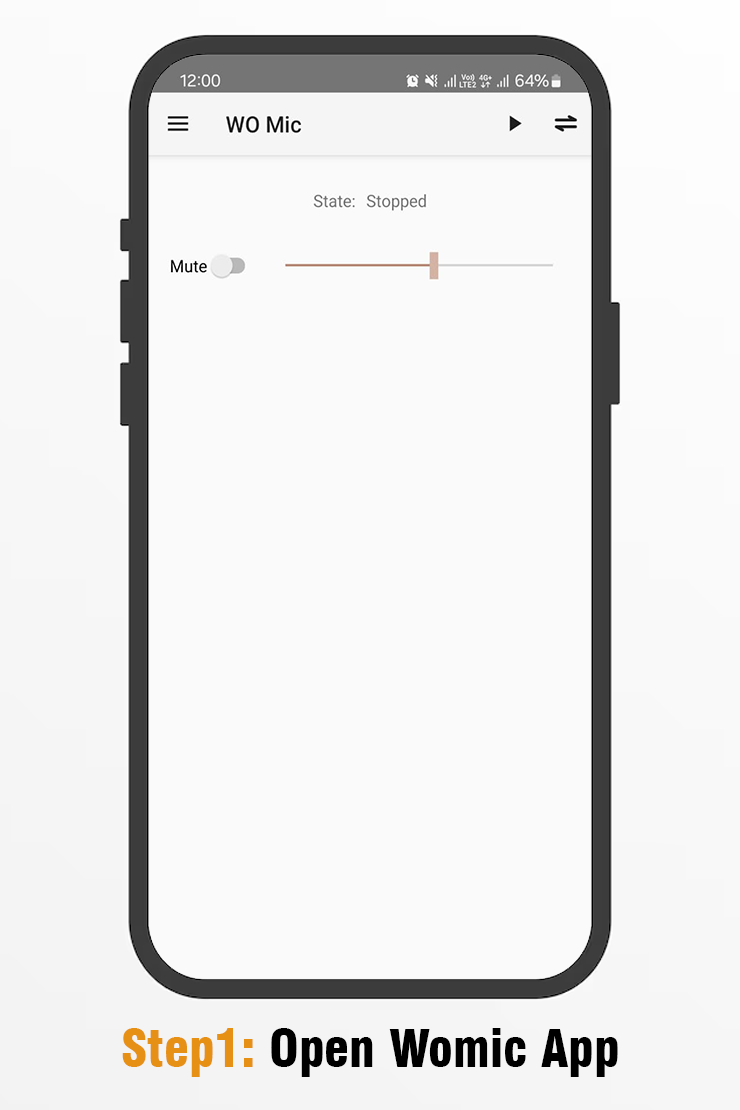
- Open the WO Mic app on your phone.
- Tap the menu or settings icon (three dots or gear symbol).
- Find the setting called Transport, and choose Wi-Fi.
- Go back to the home screen of the app.
- Tap the start button to begin.
- The app will show a number called an IP address. You'll need it in the next step.
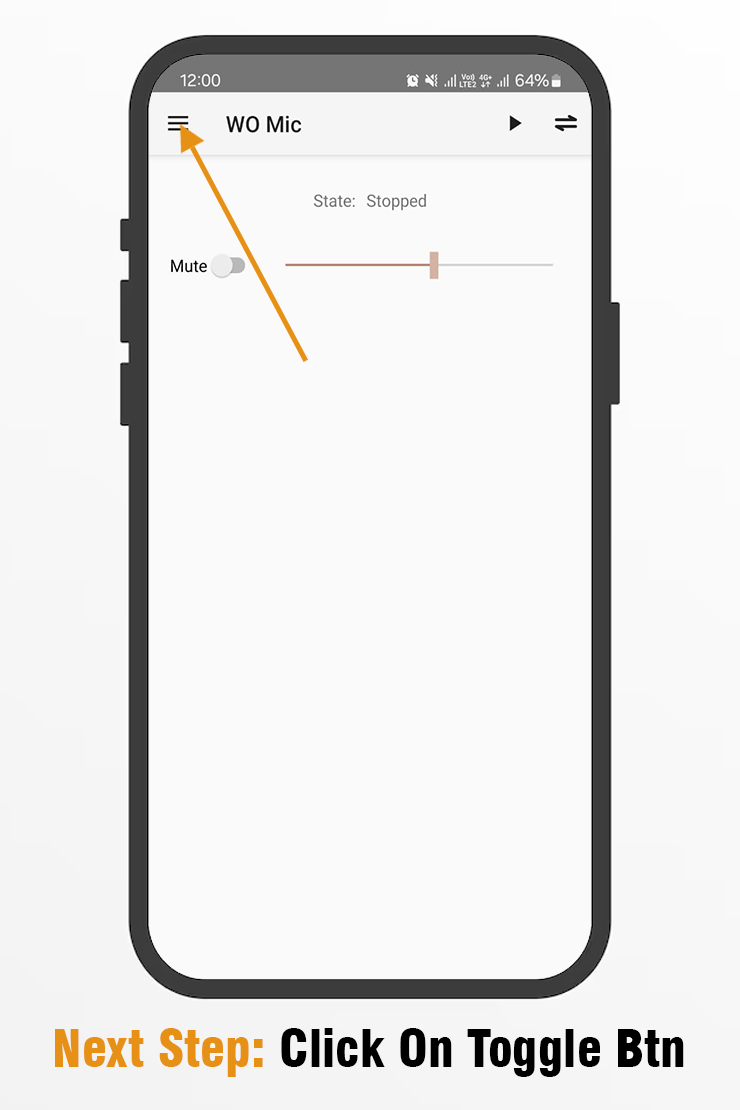
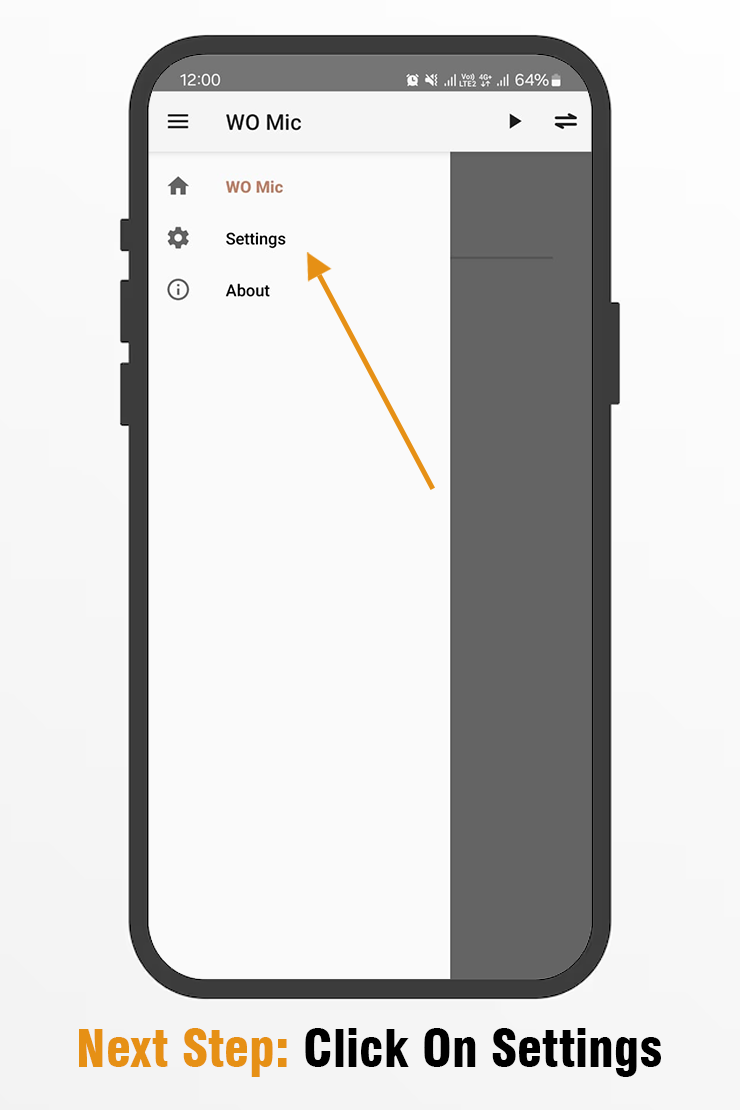
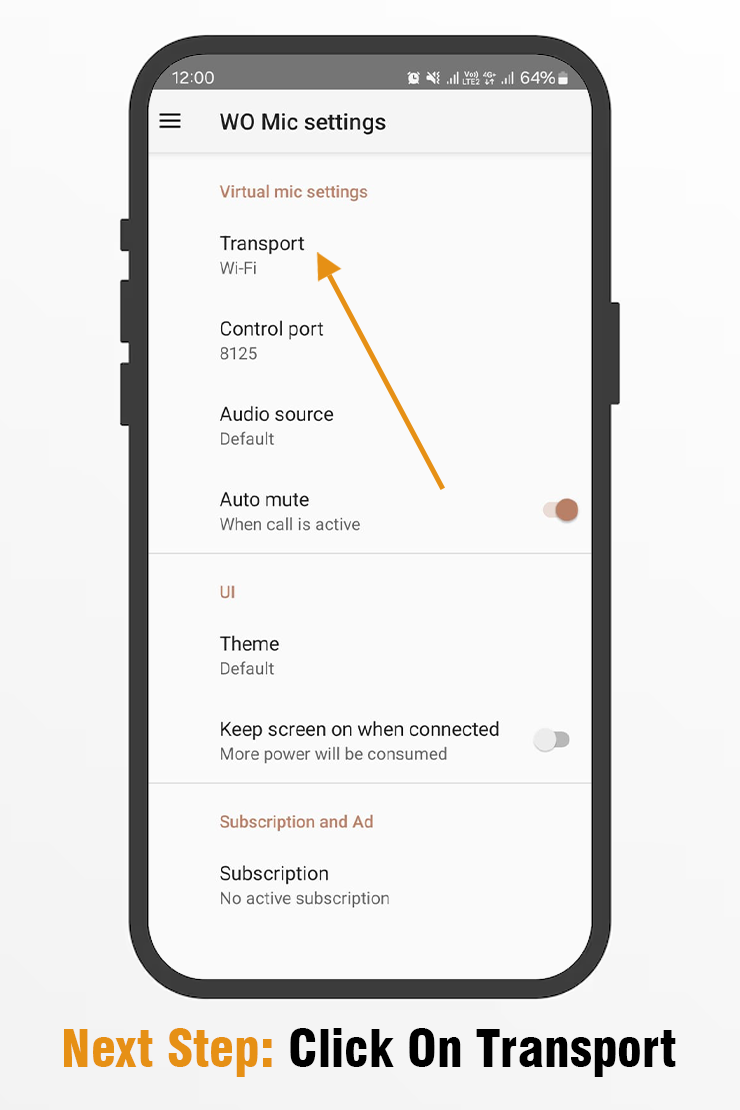
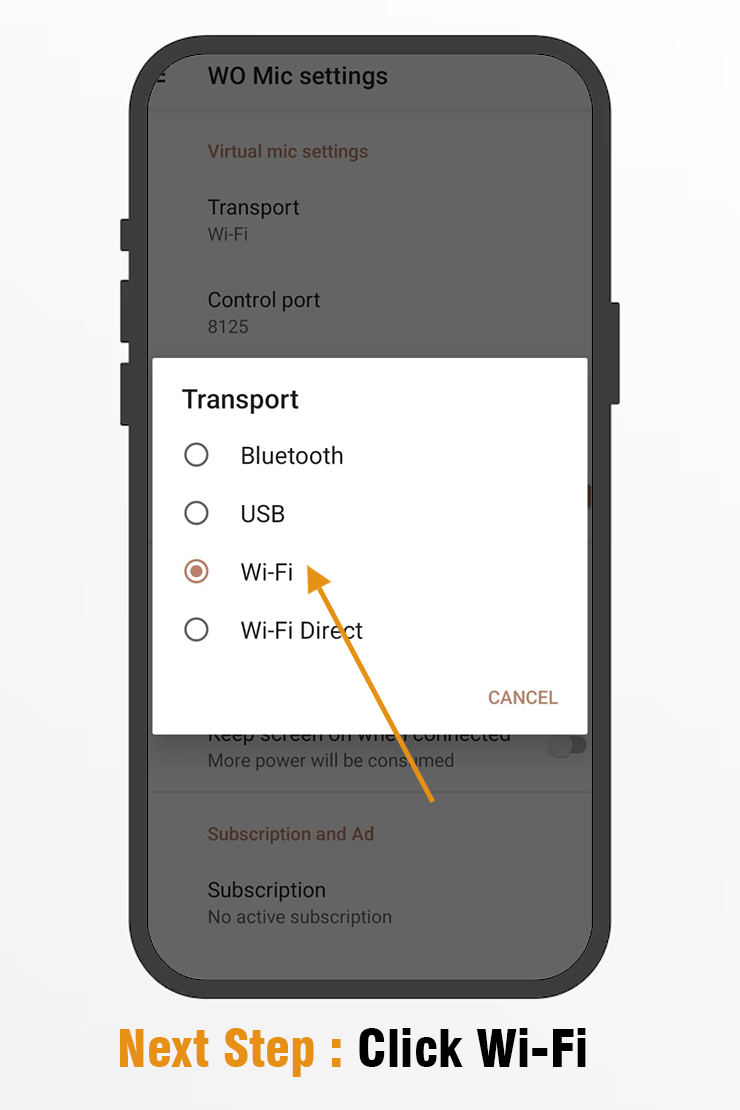
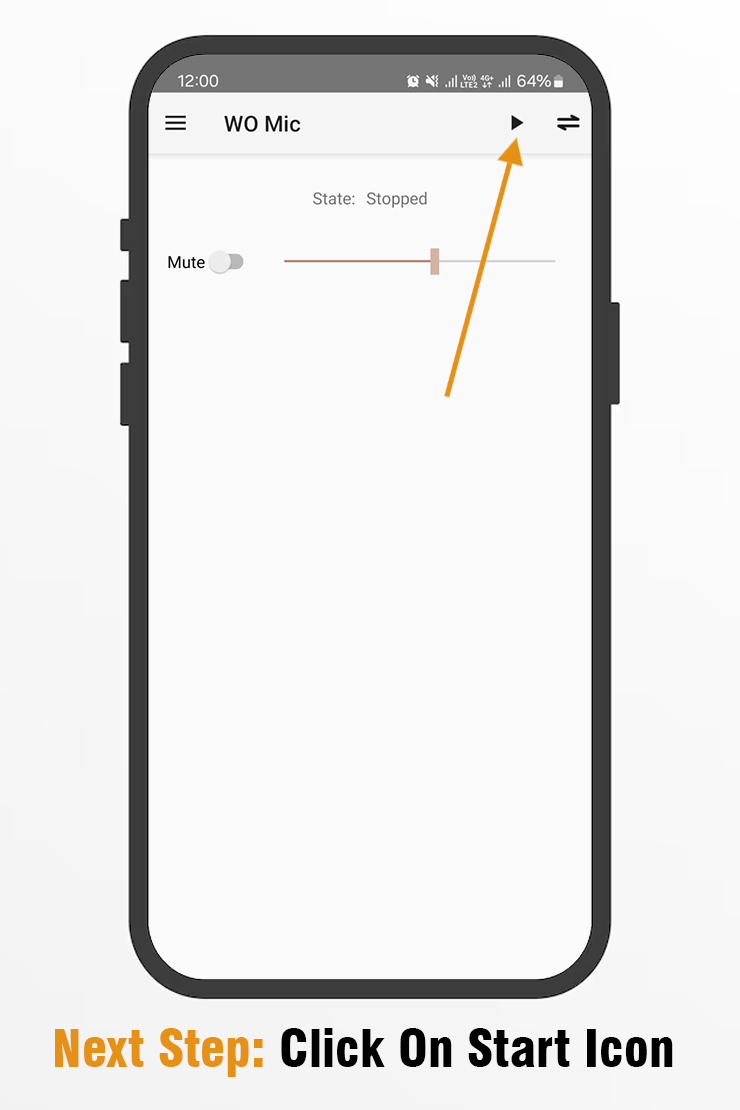
If you’re using iPhone:
- Open the WO Mic app.
- Just tap the Start button.
- Allow any permissions the app asks for (like microphone or network access).
- You will see your IP address. Keep it ready for the next step.
Step 2: Connect From Client On Your Computer
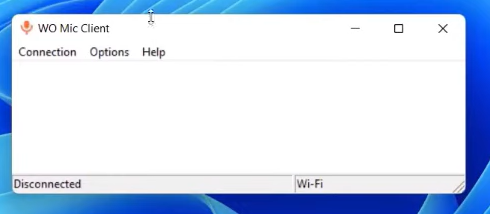
- On your Windows PC, press the Windows key and search for WO Mic Client.
- Open the program when you see it.
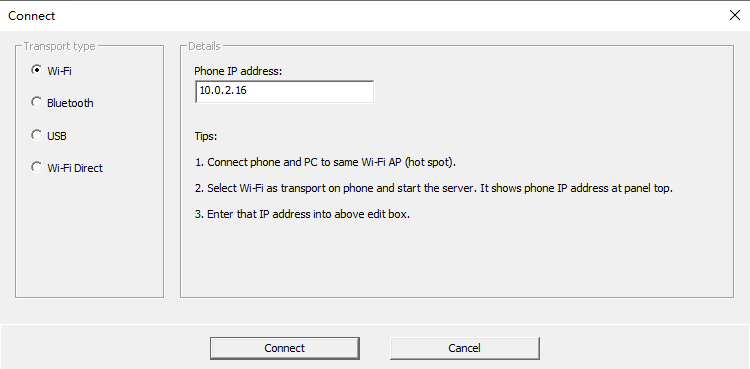
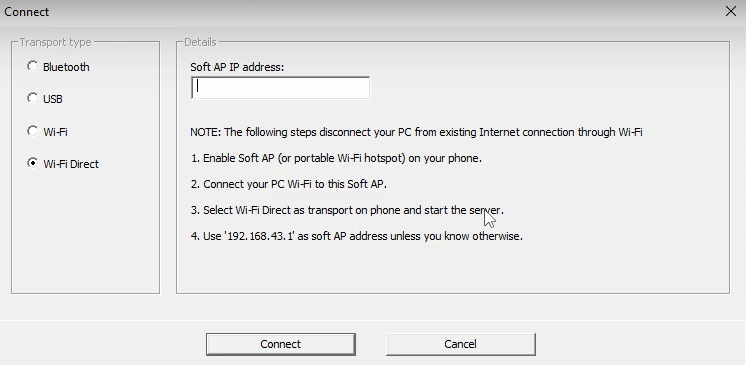
- At the top, click on Connection, then choose Connect.
- In the pop-up window, select Wi-Fi as the connection type.
- Type in the IP address shown on your phone (the one from Step 1)
- Click the Connect button.
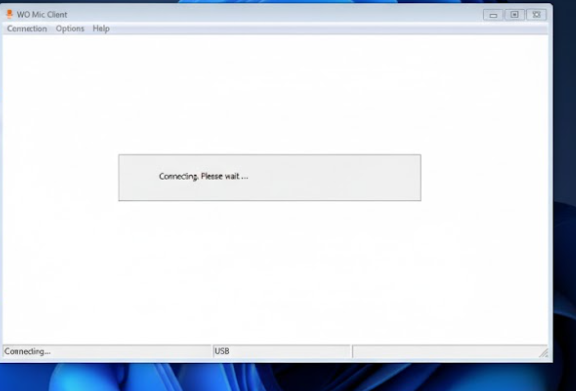
If everything is correct, your phone and PC will connect in a few seconds. If they don’t, follow these WO Mic troubleshooting steps.
Step 3: Use the Wo Mic Device
Your phone now works as a microphone for your PC. You can use it in Zoom, Discord, Skype, OBS, games, or any app that needs a mic. If an app doesn’t let you choose a mic, go to Windows Sound Settings → Recording Devices and set WO Mic device as the default microphone.
Can You Use WO Mic Inside an Emulator?
Technically, yes. Some users try to install the WO Mic APK on a Windows PC using an Android emulator like BlueStacks, NoxPlayer, or LDPlayer. However, this is only useful if you want to test the Android app on your computer, not for everyday microphone use. For the best performance, it’s recommended to use the official WO Mic Windows Client instead.
Why It Doesn’t Work Well?
- Emulators already use your computer’s microphone by default.
- WO Mic needs a physical Android phone or iPhone to send audio data to the PC client.
- You can’t make an emulator work like a physical phone microphone.
- It just adds unnecessary complexity and won’t improve sound quality.
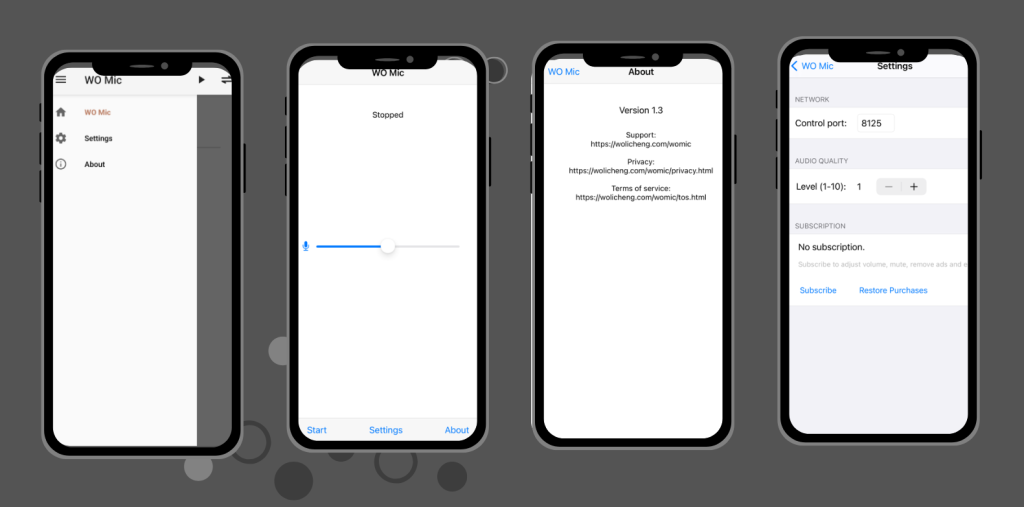
Main Features
- Free basic version, no payment needed
- Connect via Wi-Fi, USB, Bluetooth, or Wi-Fi Direct
- Works on Windows 10/11 and macOS
- Supports both Android and iPhone
- Compatible with Zoom, Teams, Discord, Skype, OBS, etc.
- Acts like a real mic once connected
- Adjustable mic volume and sound quality
- Simple setup no tech skills required
- Low delay for smooth voice transmission
- Auto-reconnect after PC restart
- Clear audio: 48kHz, 16-bit, mono sound
WO Mic Pro (Paid Version)
It has a Pro version with extra features:
- No ads
- Background noise removal
- More control over audio quality
But for most users, the free version works just fine.
Pros and Cons of WO Mic
Pros
1. Free to use no need to buy a dedicated microphone.
2. Quick and easy setup.
3. Works on Windows, macOS, and Linux.
4. Supports Android and iPhone.
5. Connects via Wi-Fi, USB, or Bluetooth.
6. Low audio latency for gaming, streaming, and voice chat.
7. Clear audio quality for calls, meetings, and everyday use.
8. Lets you adjust microphone volume and sensitivity.
9. Works well as a backup microphone.
10. Lightweight and stable in the latest version.
Cons
1. Sound quality isn’t suitable for professional recording.
2. Can’t hear PC audio through your phone.
3. May disconnect on weak Wi-Fi connections.
4. Requires installation on both your phone and computer.
5. Works only as a microphone without built-in audio effects.
Is WO Mic App Safe?
WO Mic is generally safe when downloaded from official sources like the Google Play Store, Apple App Store, or our website. However, some users have reported security and privacy concerns, including malware warnings and data collection issues related to unofficial or modified versions. To stay safe, avoid third-party download sites, scan downloaded files with trusted antivirus software, and use only the latest official version. If you’re looking for another option, you can also compare trusted WO Mic alternatives like DroidCam and Iriun Webcam.
Final Thoughts On WO Mic : Free Microphone
WO Mic is a simple and free way to turn your Android phone or iPhone into a wireless microphone for your Windows PC or Mac. It’s a practical choice for gaming, online meetings, voice chat, streaming, podcast recording, and everyday communication. Setup takes only a few minutes, and you can connect using Wi-Fi, USB, or Bluetooth without buying a dedicated microphone.
Disclaimer:
This website is an independent resource and is not affiliated with, endorsed by, or sponsored by Wolicheng Tech or the official WO Mic application. All information is provided for educational and informational purposes only. We do not modify WO Mic software and claim no ownership of its trademarks or other intellectual property.
FAQS
Can I use WO Mic with programs like Skype, Zoom, or voice typing?
Yes, you can! it works like a regular microphone. You can use it with video calls (like Skype or Zoom), voice recording apps, or speech-to-text tools. Just make sure to select WO Mic as the microphone in the settings of the program you’re using.
Can I use this app with Discord?
Yes, you can use it on Discord:
- Start WO Mic on your phone and PC.
- Connect using USB, Wi-Fi, or Bluetooth.
- On Discord, go to Settings > Voice & Video.
- Choose “WO Mic Device” under the Input Device section. Now you can talk through your phone mic on Discord!
How do I use it with USB?
To use it with USB:
- Connect your phone to your PC with a USB cable.
- Turn on USB debugging on your phone (from Developer Options).
- In this app, choose USB as the transport method.
- On the PC client, choose USB and start the connection. Make sure your PC has the necessary drivers installed.
What audio quality does WO Mic use?
It records in mono sound, with a sampling rate of 48000 Hz and 16-bit audio. This is good enough for clear voice calls, meetings, or simple recordings.
Can I use it on my PS3 or PS4?
No, it is made to work with Windows, Mac, or Linux computers—not with PlayStation consoles. PS3 or PS4 won’t detect it as a microphone.
Does WO Mic work on Linux?
Yes, it does. There’s a version of the WO Mic client for Linux, but it works only on 64-bit systems. You’ll need to follow specific setup instructions depending on your Linux distro.
WO Mic is not showing on my PC how do I check if the driver is installed?
Here’s how to check:
- Press Windows + X, then choose Device Manager.
- Go to Sound, video, and game controllers.
- Look for WO Mic Device. If it’s there without any warning sign (like a yellow triangle), it’s installed correctly.
- You can also open the WO Mic client and check under Help > Statistics. If “Driver State” is 1, the driver is working.
How do I uninstall the WO Mic driver from Windows?
To remove the WO Mic driver manually:
- Press Windows + X and open Device Manager.
- Go to Sound, video, and game controllers.
- Right-click on WO Mic Device and select Uninstall.
Or, use the uninstall.exe file that comes with WO Mic or remove it from Windows Settings.
If it’s there without any warning sign (like a yellow triangle), it’s installed correctly.
You can also open the WO Mic client and check under Help > Statistics. If “Driver State” is 1, the driver is working.
Why isn’t WO Mic showing up in Skype?
If Skype doesn’t detect WO Mic, do this:
- Make sure WO Mic is running and connected.
- Open Skype settings > Audio & Video.
- Look for Microphone settings.
- Choose WO Mic Device manually from the list. Now Skype should pick up your voice from WO Mic.
Can I use this app for online gaming voice chat?
Yes! As long as your game lets you use a microphone, you can use WO Mic. Just make sure to select WO Mic as the mic in the game or system audio settings.
Does WO Mic work on Mac?
Partially. The actively maintained WO Mic client is built for Windows (v6.3) and Linux, while the Mac client is version 1.3 and hasn’t been updated since 2016. It can still work on some Macs, but expect possible driver or permission issues on newer systems, especially Apple Silicon models. If it doesn’t install cleanly, check our WO Mic alternatives for options built specifically for macOS.
How do I install the USB driver for my Android phone?
Visit your phone manufacturer’s website to download the correct USB driver, or use Google’s OEM USB drivers page. After installing, connect your phone via USB — it should appear under “ADB Interface” in Device Manager.
Why does my voice sound robotic on WO Mic?
You can use a USB connection if possible — it’s faster and more stable. Keep the WO Mic app open in the foreground, close apps that use too much CPU, and if you’re using both Bluetooth and Wi-Fi, turn one off to avoid interference
Can I use this app without internet?
Yes. If you use the USB or Bluetooth option, you don’t need Wi-Fi or mobile data. The USB method is especially good for a stable connection without the internet.
What is the use of WO Mic?
WO Mic is a free app that lets you turn your phone into a microphone for your computer. It sends your voice from the phone to your PC using Wi-Fi, USB, or Bluetooth. The WO Mic software on your computer acts like a real mic, so you can use it for chatting, recording, gaming, or streaming without buying an external microphone.
Can I use it for gaming?
Yes, you can use WO Mic for gaming. It works like a real mic for voice chat. If your game doesn’t let you pick a mic, set WO Mic as the default mic in Windows settings.
Why won’t it stay connected on Wi-Fi?
Your computer’s firewall might be blocking WO Mic from sending audio. Go to Windows Defender Firewall → Allow an app through firewall, and make sure womicclient is checked (allowed). If you use another firewall program, open its settings and allow WO Mic network access.
How do I cancel my WO Mic subscription?
If you’re using Android, open the Google Play Store, go to Payments & Subscriptions → Subscriptions, select WO Mic, and tap Cancel.
If you’re on an iPhone, follow Apple’s guide to cancel subscriptions.
How do I enable USB debugging on my Android phone?
Open Settings → Developer options, then turn on USB debugging. If you don’t see Developer options, go to Settings → About phone, tap Build number seven times to unlock it, then return to enable USB debugging.
Why does the WO Mic connection stop every 5 minutes?
Your computer might turn off Wi-Fi when it goes to sleep. Go to Power Options and make sure your Wi-Fi stays on during sleep mode. Also, update your network adapter driver to the latest version
Why do I hear static or background noise?
The selected mic input might be too sensitive. Open the WO Mic app settings, try a different MIC device, and see which gives the clearest sound.
Can I connect more than one phone to my computer at once?
No, WO Mic is made for a one-phone-to-one-PC connection. It doesn’t officially support using multiple phones as microphones on the same computer. Even if you try workarounds, most PCs only accept one mic input at a time. Also, using multiple wireless connections (Wi-Fi or Bluetooth) can cause signal issues since they share the same frequency. For stable use, stick to one device and turn off unused wireless connections on both phone and PC.
Is WO Mic compatible with all PC operating systems?
No, support varies by platform. Windows is fully supported and gets the latest updates, Linux is supported on 64-bit systems, and macOS only has an older, unmaintained client (v1.3) that may not run smoothly on newer Macs. If you’re on Windows or Linux, installation should be straightforward; if you’re on Mac and run into setup issues, that’s expected given the client’s age.
Can I use this app for professional audio recording?
Not recommended. This free app is best for casual use like voice chatting, online meetings, or basic recordings. While it can handle simple tasks, it may have limitations in audio quality and latency, which makes it unsuitable for professional audio recording. For studio-quality sound, a dedicated microphone and audio interface are recommended.
Can I use my phone’s microphone on my PC?
Yes, you can turn your phone into a mic for your computer. The easiest way is by using a wired connection, such as an AUX cable or a USB cable (like a Lightning cable for iPhones). Just plug it in, set it up with the right app or driver, and your phone will act as a microphone.
Does this app support microphone monitoring?
Yes, it supports microphone monitoring. You can hear your voice in real time through your computer’s speakers or headphones while using the WO Mic client. This helps you adjust your speaking volume and settings as needed, just like with a real microphone.
Is WO Mic free to use?
Yes. WO Mic is free to use and includes all the essential features needed to use your phone as a wireless microphone. A Pro version is available with additional features, but the free version is sufficient for most users.